
Copy all form data on page
- Go to the source page which contains the form values you want to transfer.
- Open MultiField CopyCat. In the Copy tab, click Copy All Form Data on Page.
- A confirmation message with the number of fields copied will be displayed.
Paste all copied form data to page
- Open the page with the destination form.
- Open MultiField CopyCat. Select Paste All Form Data to Page.
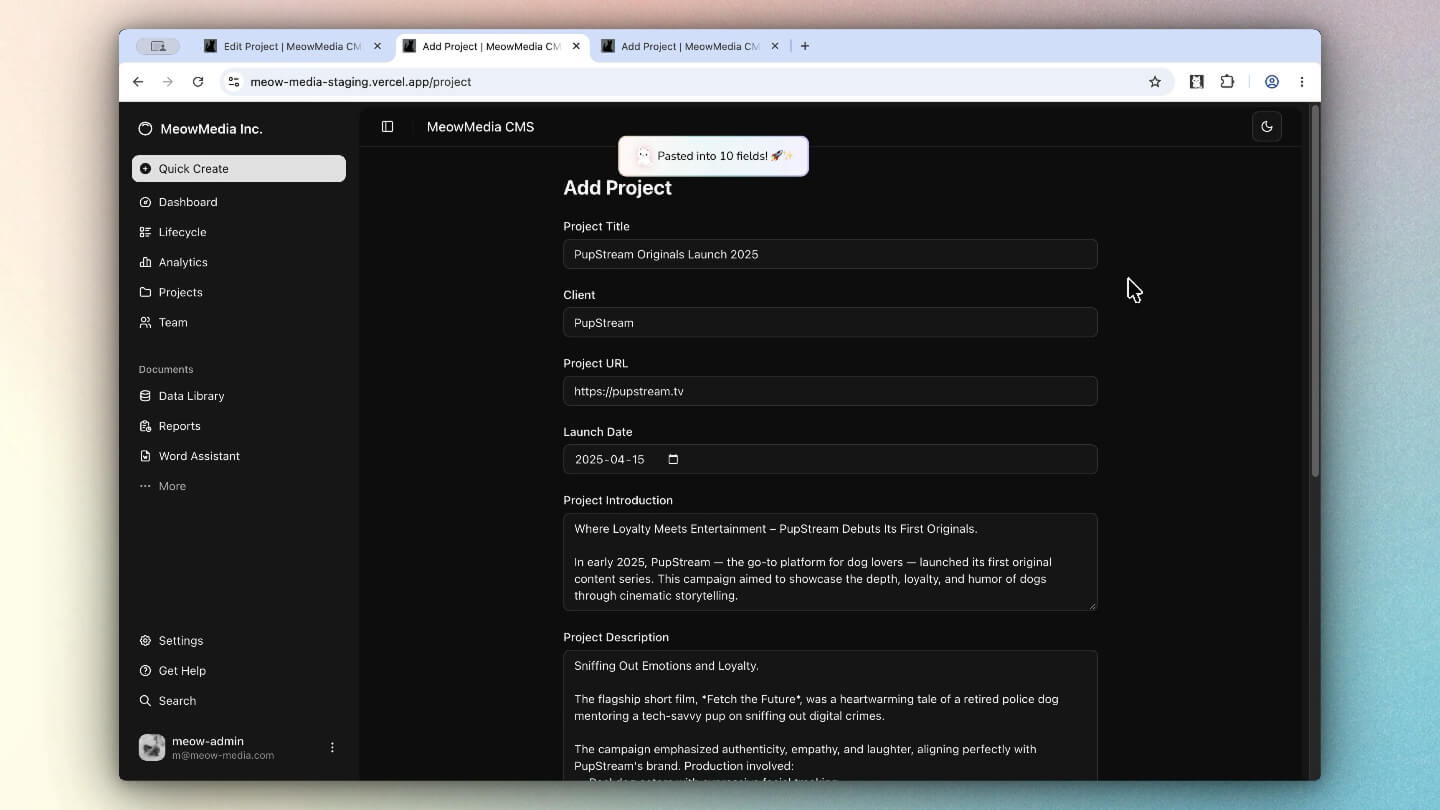
- The form should be filled with the copied values. Review the destination form before submission.
You can always use default Keyboard Shortcuts or customize your own to speed up the form-filling process without opening the extension popup.
| Action | Default Shortcuts |
|---|---|
| Copy all form data on page |
|
| Paste all form data to page |
|
Choose how fields are matched
Sequential Match fills destination fields in their page order. Smart Match compares field information, such as labels and other form metadata, to identify and match fields that are similar, so form values can be filled even when layouts or field order differ.
See Sequential vs Smart Match before moving data between unlike forms.
What is included
MultiField CopyCat scans supported native and modern form controls, including text fields, text areas, dropdowns, checkboxes, radio buttons, switches, and some ARIA-based custom controls. It ignores unsupported inputs such as file uploads and hidden fields.