
Copy fields with Dragbox
- Open the extension popup on the page that contains form fields with data to copy.
- In the Copy tab, choose Copy with Dragbox.
- Drag over the fields you want to copy. Fields are included when your selection reach them.
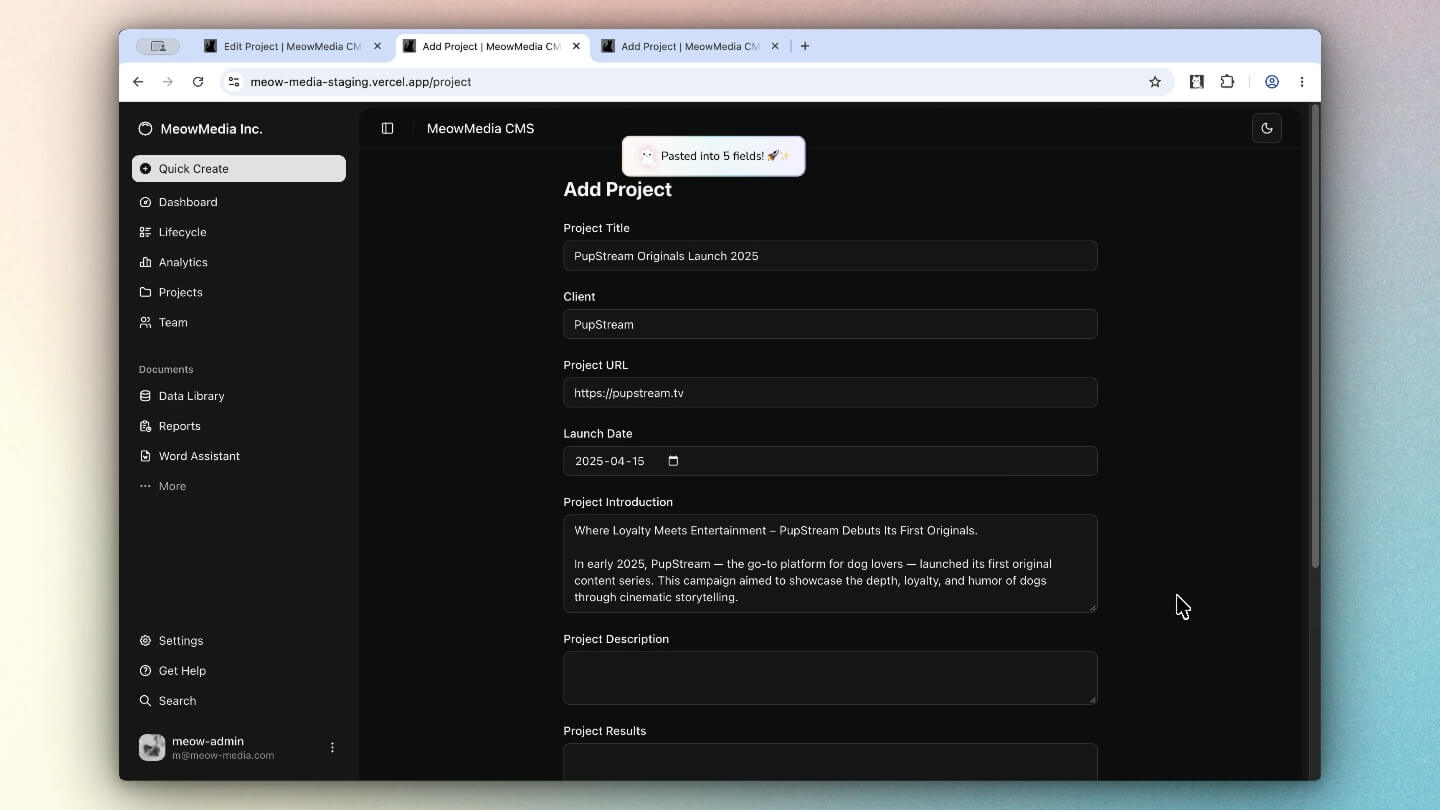
- Release the pointer. MultiField CopyCat confirms how many field values were copied.
Paste fields with Dragbox
- Open the destination form.
- Open the extension popup and choose Paste with Dragbox.
- Drag around the destination fields in the order you want them considered.
- Release the pointer to paste the copied values.
The selected fields are filled using the active matching mode: Sequential or Smart Match.
You can always use default Keyboard Shortcuts or customize your own to speed up the form-filling process without opening the extension popup.
| Action | Default Shortcuts |
|---|---|
| Copy with Dragbox |
|
| Paste with Dragbox |
|
Cancel or clear copied values
Press Escape to leave Dragbox selection mode. To discard values already copied from local storage, use Clear Copied Values (Bin button) in the extension popup.
Select fields outside the viewport
Users under Free plan can select fields within the visible area. Pro users have Auto-Scroll Dragbox to continue selecting while the page scrolls.