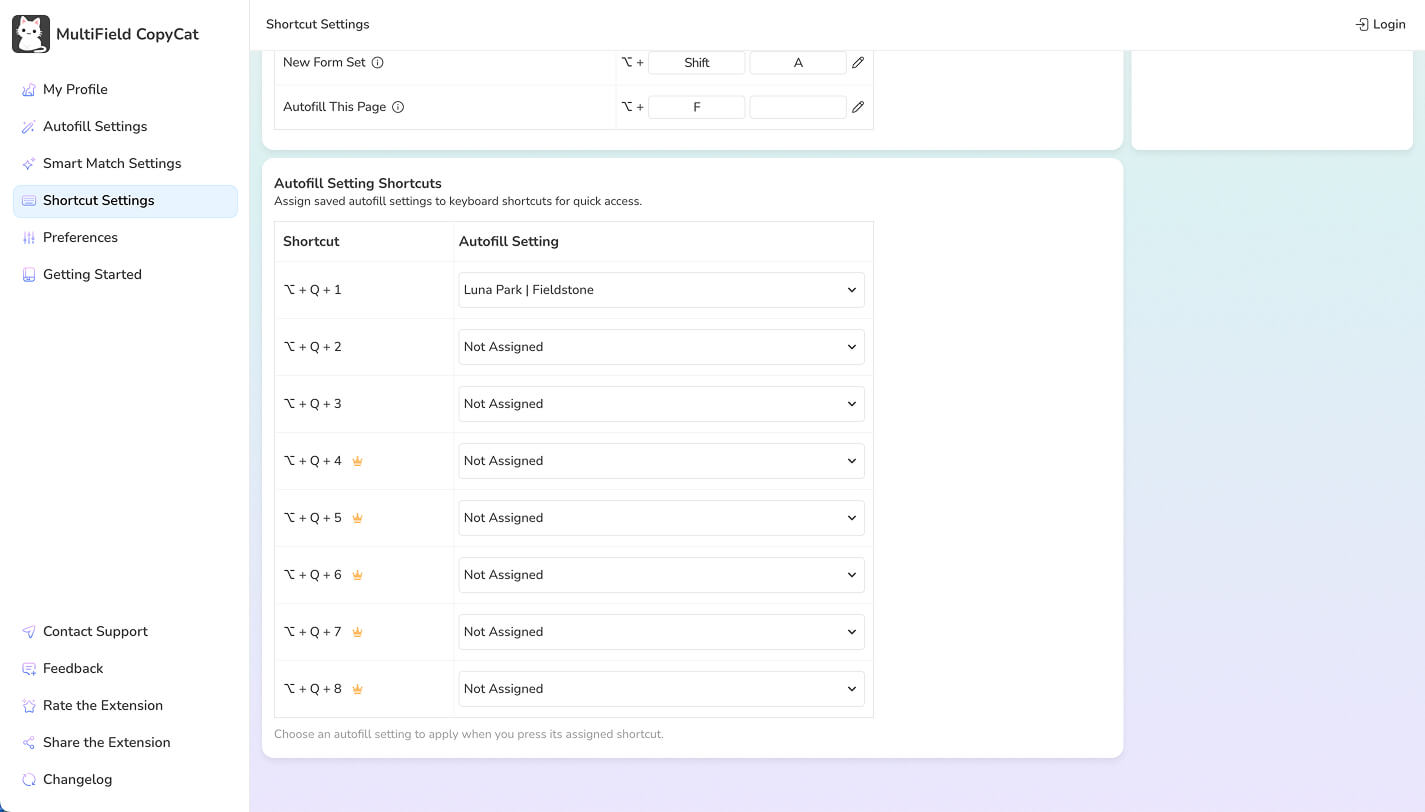
General shortcuts
Open MultiField CopyCat, open Shortcut Settings, and review the two shortcut types:
- Browser commands are managed on Chrome's extension shortcuts page.
- In-page shortcuts are stored by MultiField CopyCat and edited in its settings.
Default shortcuts
| Action | Default |
|---|---|
| Copy with Dragbox | Alt / Option + C |
| Paste with Dragbox | Alt / Option + V |
| Clear all copied values | Alt / Option + X |
| Copy All Fields | Alt / Option + Shift + C |
| Paste All Fields | Alt / Option + Shift + V |
| Save Form for Autofill | Alt / Option + A |
| Save New Form Set (Pro) | Alt / Option + Shift + A |
| Autofill This Page | Alt / Option + F |
On macOS, Option (⌥) is used in place of Alt.
Change browser commands
- Open Shortcut Settings.
- Follow the link to Chrome's extension shortcut settings.
- Find MultiField CopyCat and enter a new key combination for the command.
- Return to the form and test the shortcut.
Change in-page shortcuts
Edit the combination in Shortcut Settings, save it, and reload an already-open page before testing. Choose a combination that does not conflict with the website or your browser.
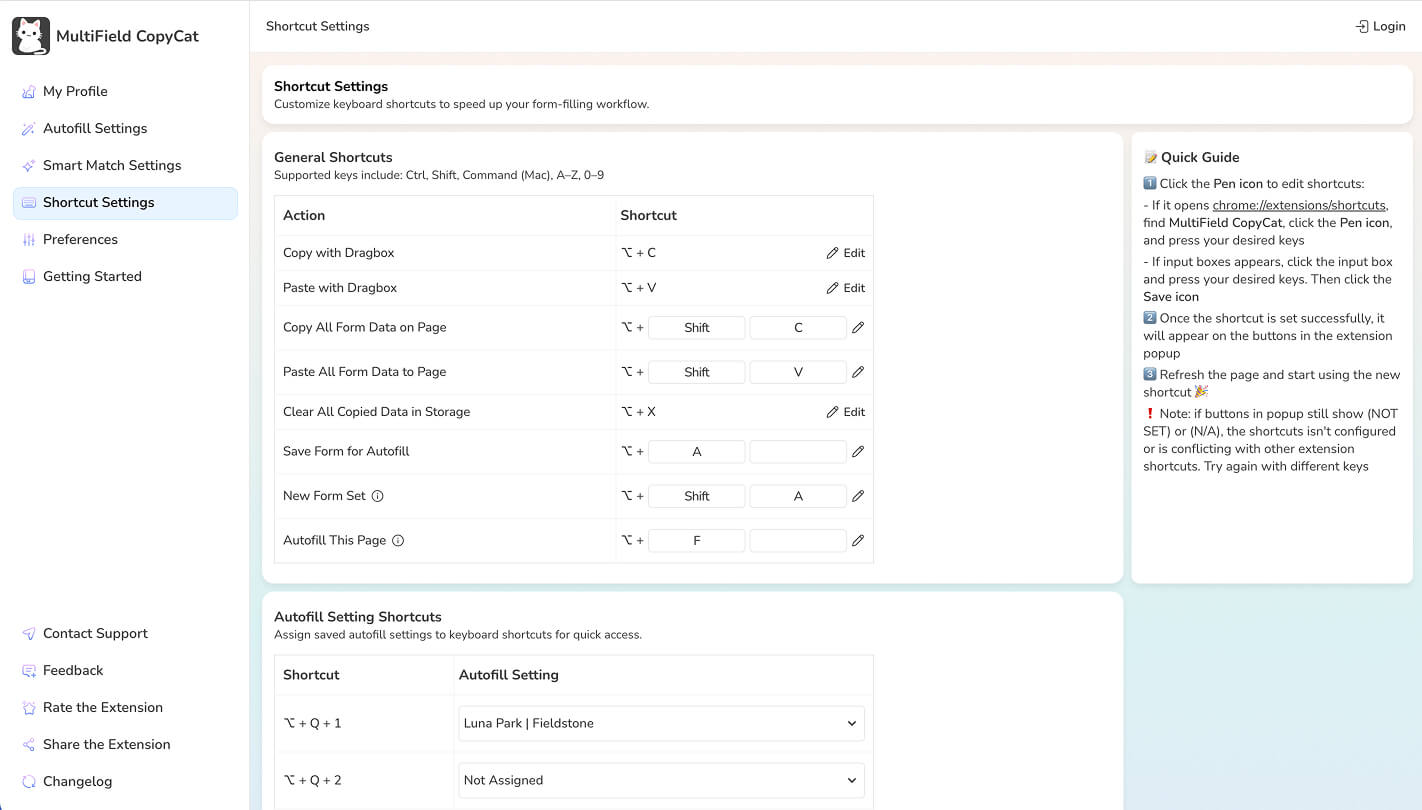
Autofill Setting shortcuts
Autofill Setting Shortcuts let you apply an assigned Autofill Setting directly without choosing it from the Autofill picker or Autofill Settings.
Assign a setting
- Open MultiField CopyCat and go to Shortcut Settings.
- Under Autofill Setting Shortcuts, choose a saved Autofill Setting for a numbered shortcut.
- Save the assignment.
The default shortcuts are Alt / Option + Q + 1 through Alt / Option + Q + 8.
Free and Pro slots
Slots 1–3 are available on the Free plan. Slots 4–8 require Pro.