
You Can Copy Multiple Form Fields at Once — Here’s How
Published on March 20, 2026 - 3 min read

Most people don’t realize this… but you don’t actually have to copy and paste form fields one by one.
If your workflow looks like this:
- Copy a name
- Paste it
- Go back, copy email
- Paste it
- Repeat above 10+ times…
You’re doing it the slow way.
There’s a much faster method: copy multiple form fields at once and paste them in one go - with MultiField CopyCat.
Here’s how it works.
🐱 Install & Pin MultiField CopyCat
- Click this MultiField CopyCat Chrome Web Store Link
- Click the 'Add to Chrome' button to install MultiField CopyCat

- Pin MultiField CopyCat to your browser toolbar for easier access
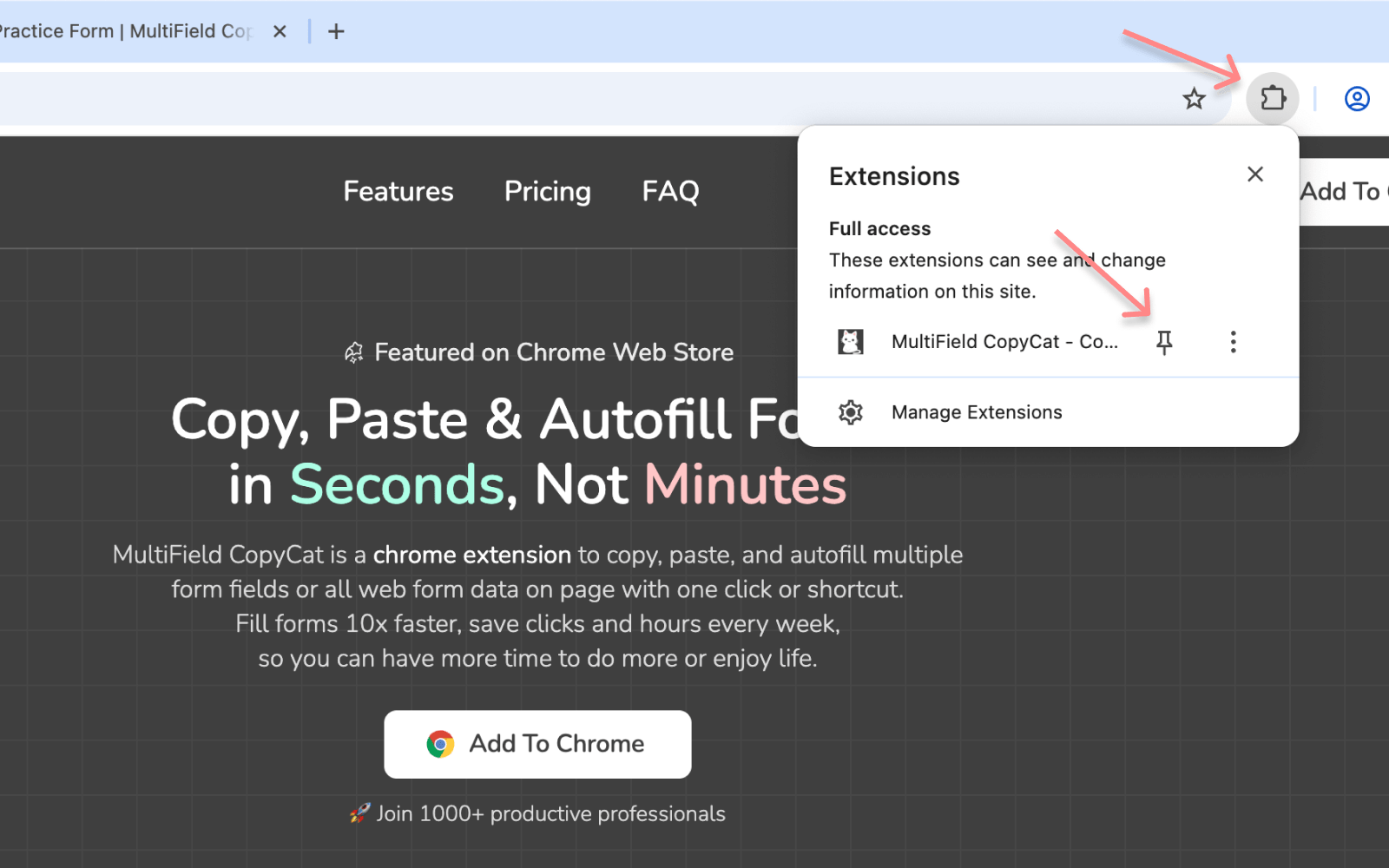
📄 Copy Multiple Form Fields at once
- Click the extension icon in browser toolbar to open the extension popup
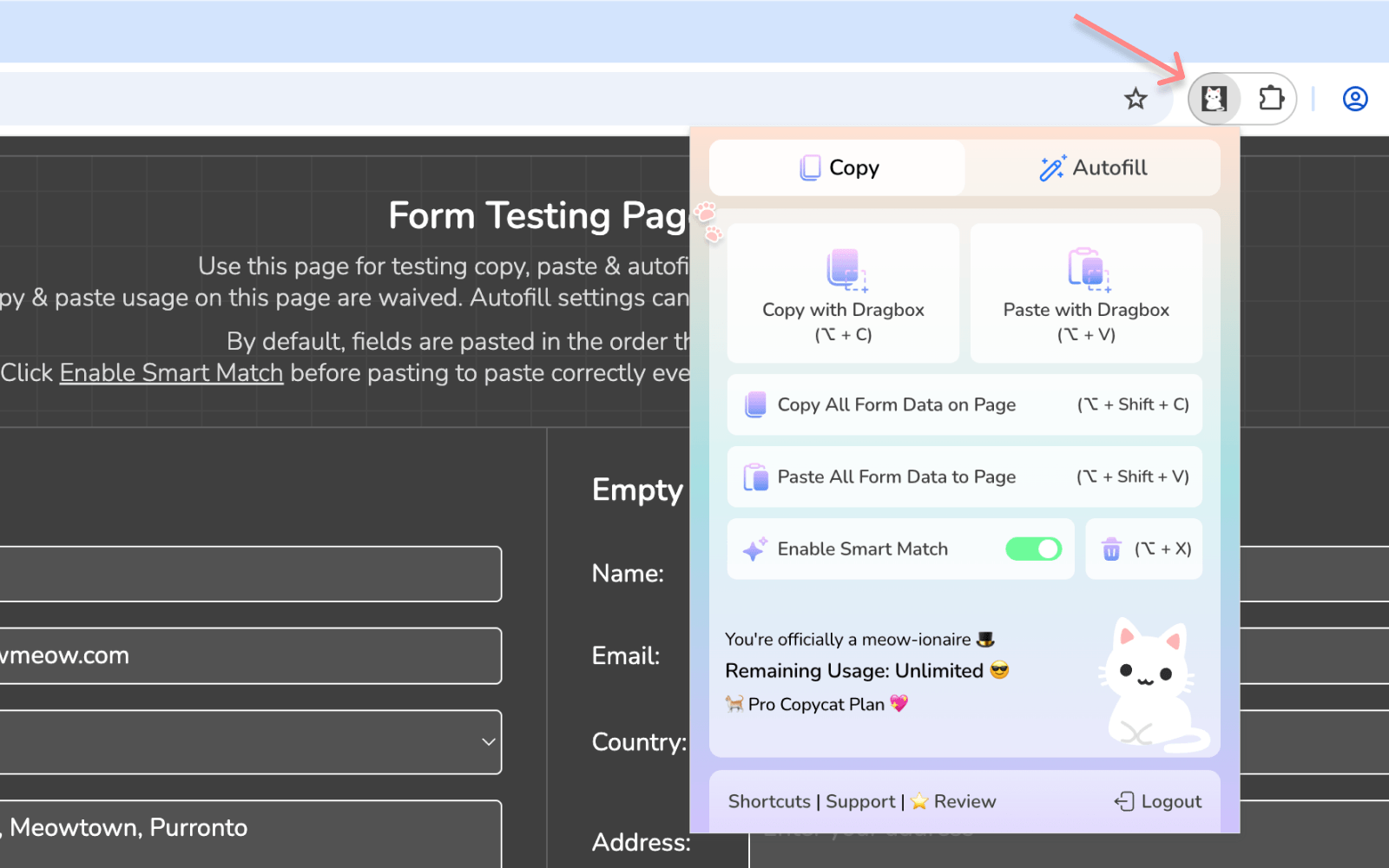
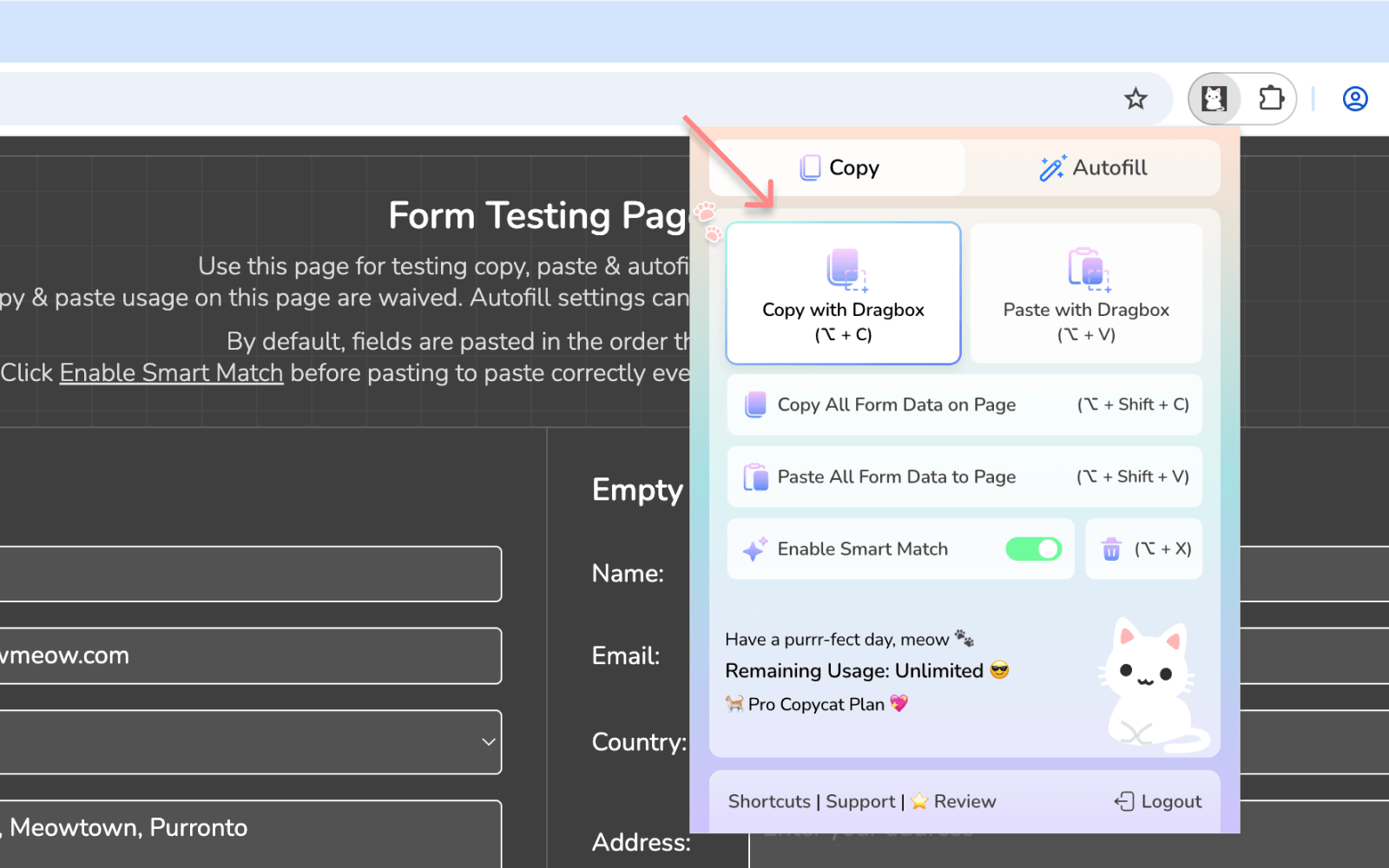
- Click the 'Copy with Dragbox' button to enter Copy mode
- Drag over the form fields to select fields you want to copy
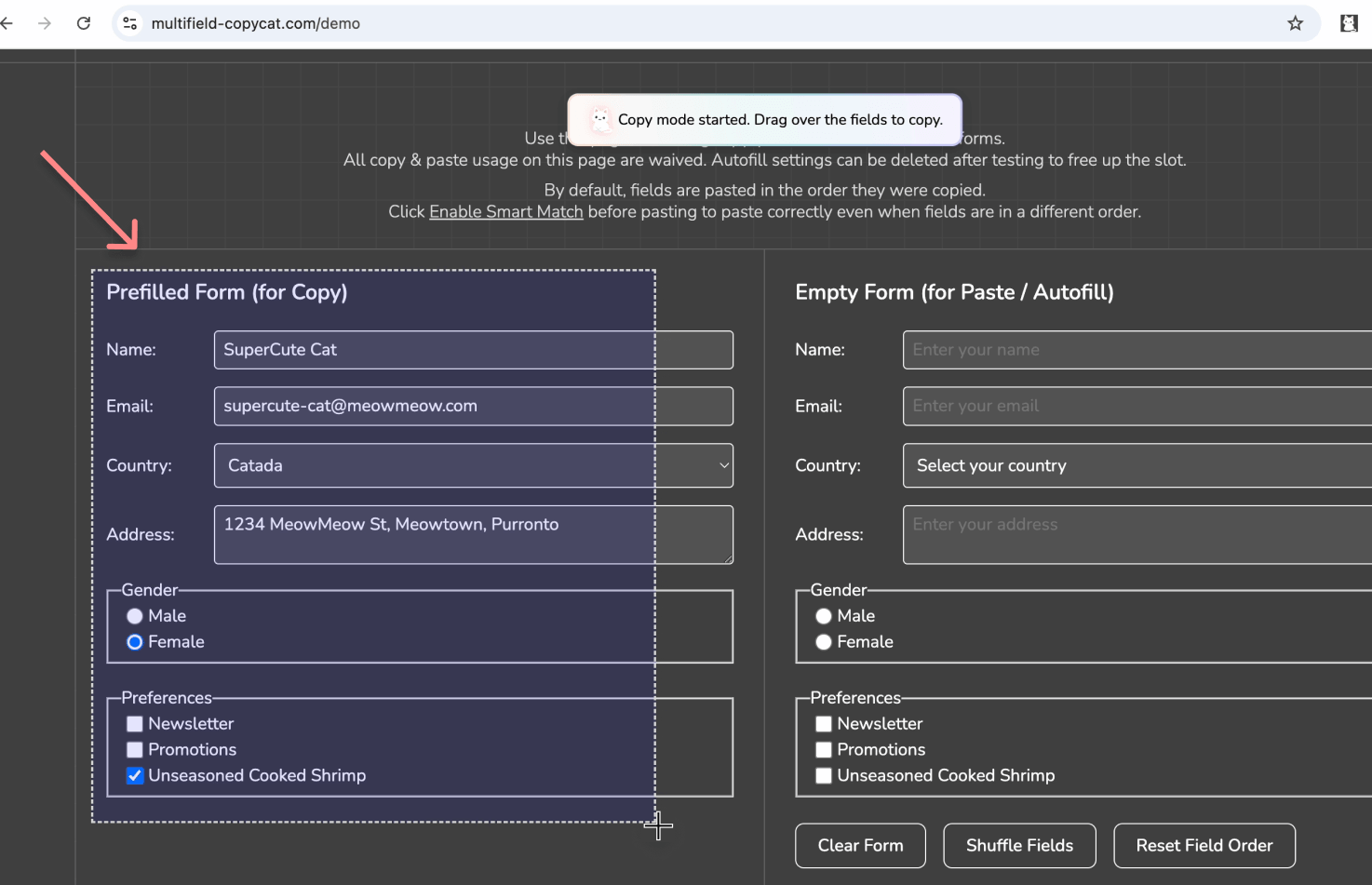
- Copied success!
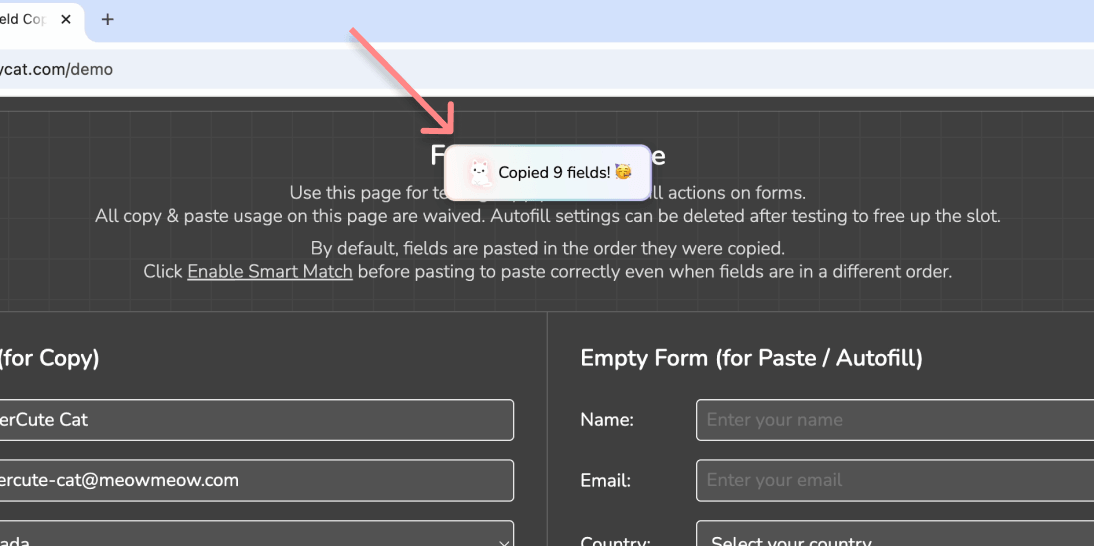
📋 Paste Multiple Form Fields at once
- Click the 'Paste with Dragbox' button to enter Paste Mode
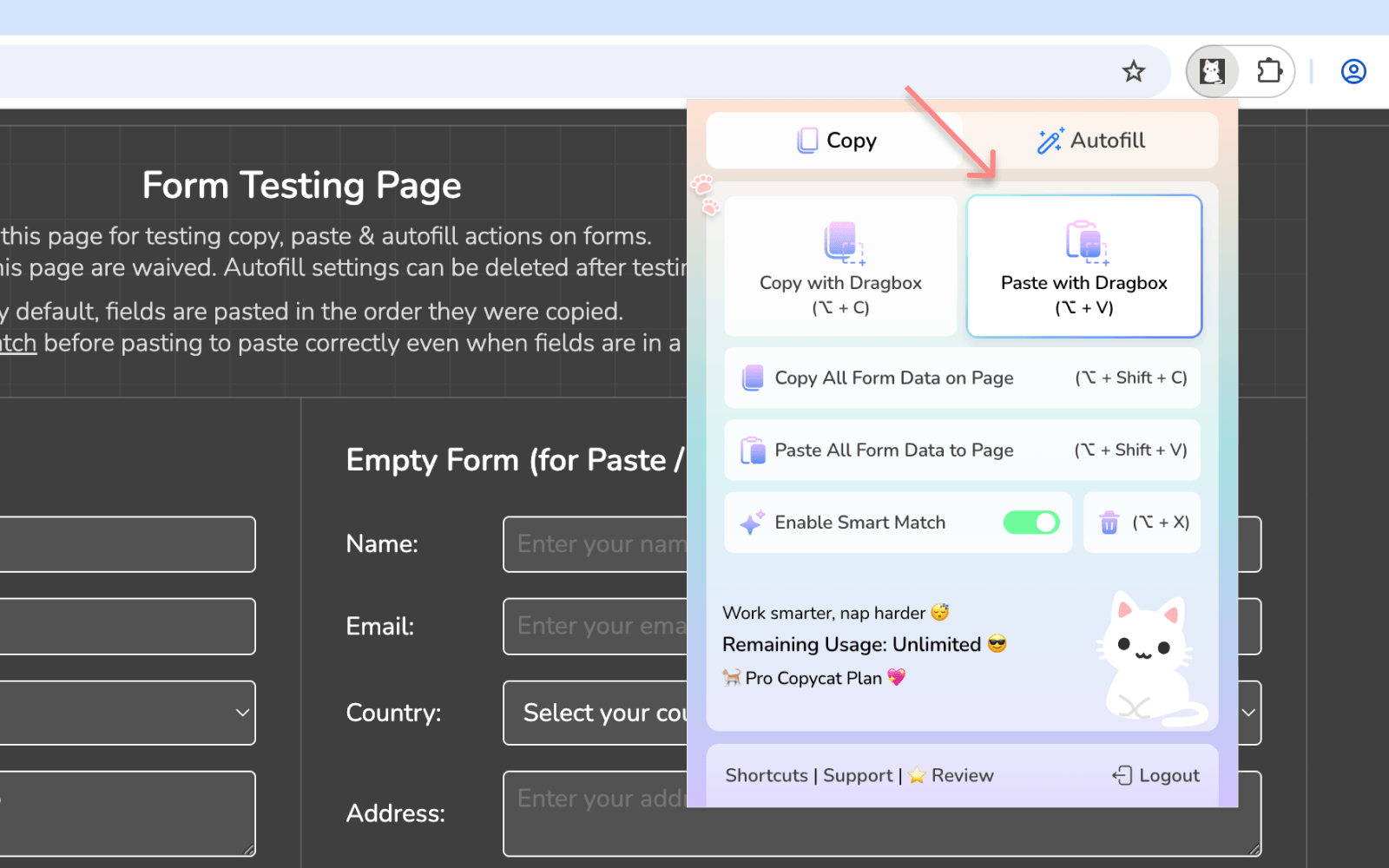
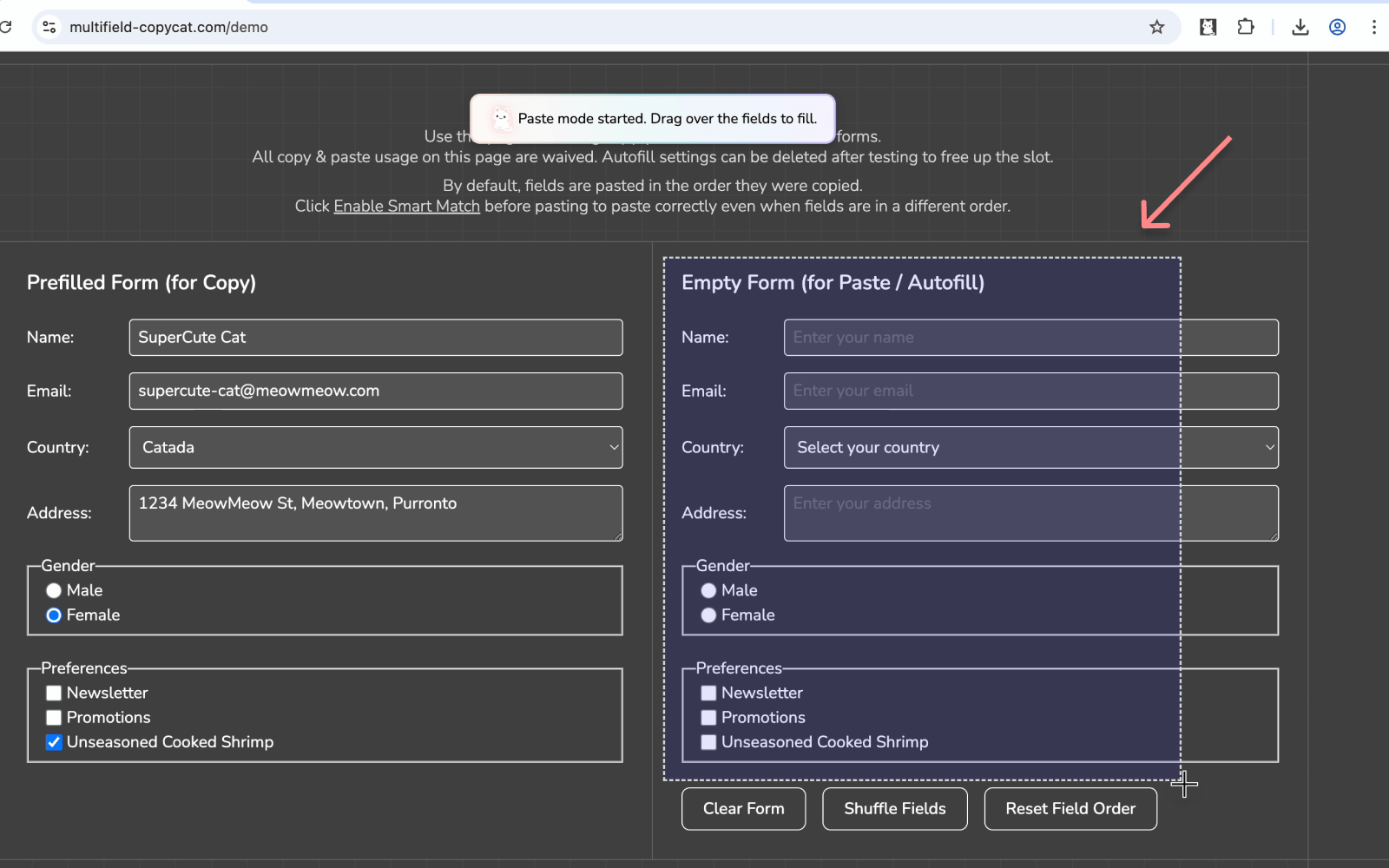
- Drag over the form fields where you'd like to paste in the copied data
- Viola! Your copied fields are now pasted successfully!
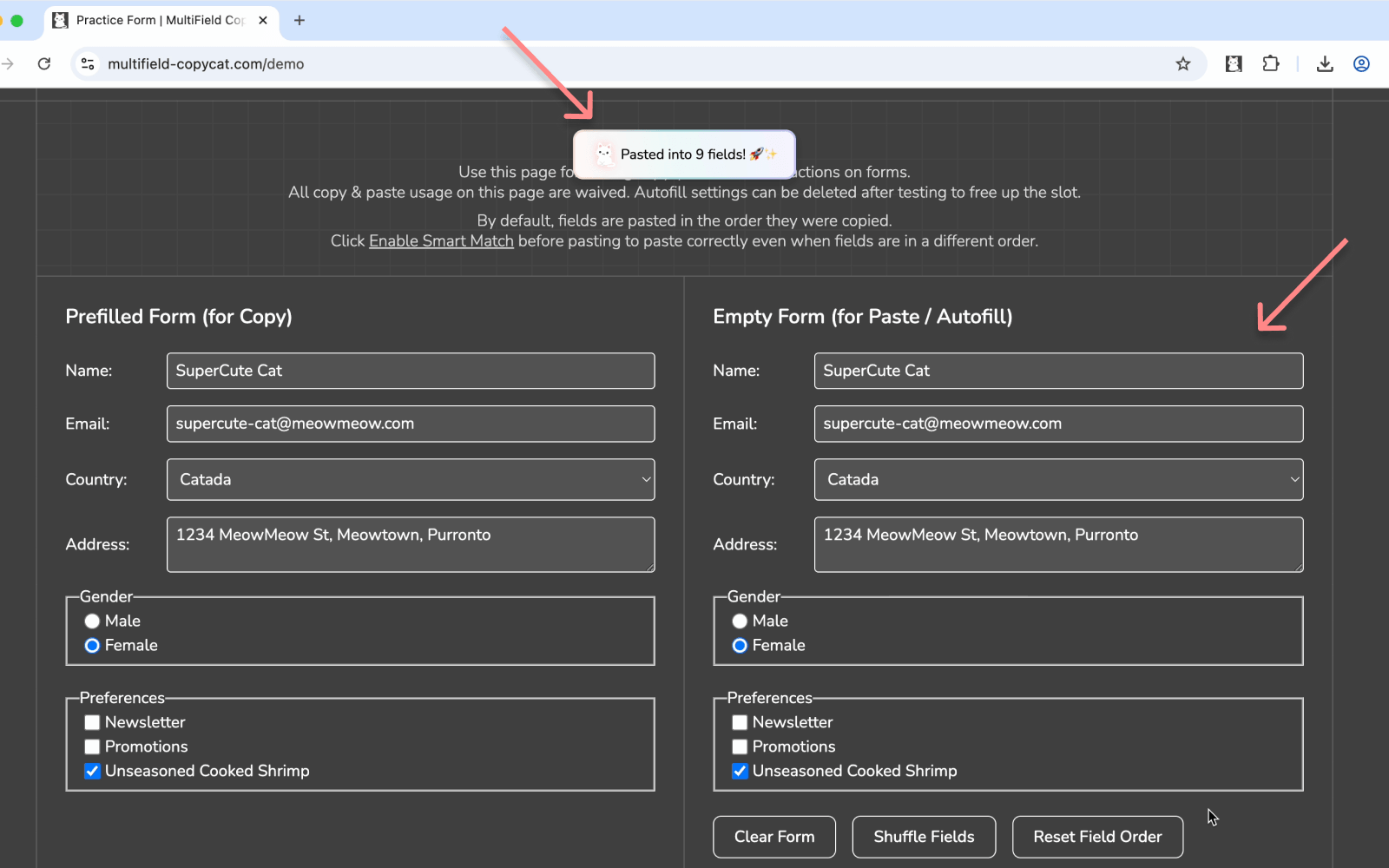
You can also toggle on/off on smart match mode, which allows MultiField CopyCat to automatically match fields across forms with slightly different labels or orders. See how it works in the youtube video below 👇🏻
📷 Youtube Tutorial / Demo Video
Check out this demo and learn how to use MultiField CopyCat to copy & paste multiple form fields with dragbox instantly ✨
(Copy & Paste Form Data Instantly with MultiField CopyCat)
You can also copy & paste all form data across pages at once!
(Copy & Paste All Form Data Across Page Instantly)
Ready to level up your form-filling workflow? Install MultiField CopyCat now and try it for free:
👉🏻 Install MultiField CopyCat Now
If this saves you time, upgrade to unlock unlimited usage and faster workflows. Leaving a review also helps support indie development 🫶


