How to Prevent Losing Web Form Data (and Save Your Answers in One Click)
Published on May 5, 2026 - 3 min read

You spent 10 minutes filling out a long web form. Then the page times out. Or your browser crashes. Or you accidentally close the tab.
And it's all gone.
Most websites don't have a built-in save button for forms — so when something goes wrong mid-form, you're starting from scratch.
Here's how to prevent that from ever happening again.
😤 Why You Lose Form Data in the First Place
Most web forms don't save your progress automatically. Unlike Google Docs or email drafts, web forms usually hold your answers only in memory — which means:
- A page timeout wipes everything
- Closing or refreshing the tab by accident = starting over
- A browser crash loses all your answers
- Session expiry on secure forms logs you out mid-fill
And the frustrating part? You had all the answers ready. You just didn't get to submit in time, and you lost all your form progress.
⚡ A Better Way: Save the Whole Form As Autofill
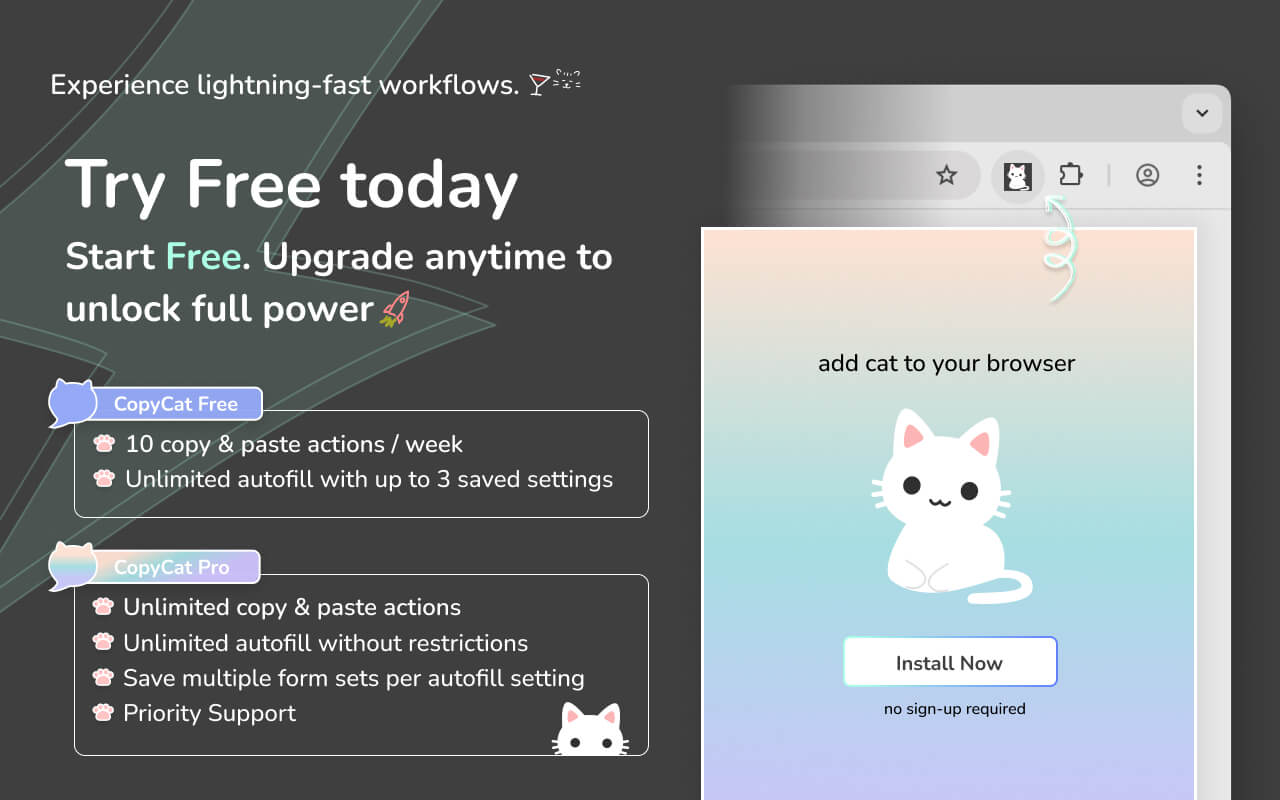
Instead of scrambling to recover lost answers, you can save your filled form as an autofill snapshot before anything goes wrong — and restore it instantly if it does.
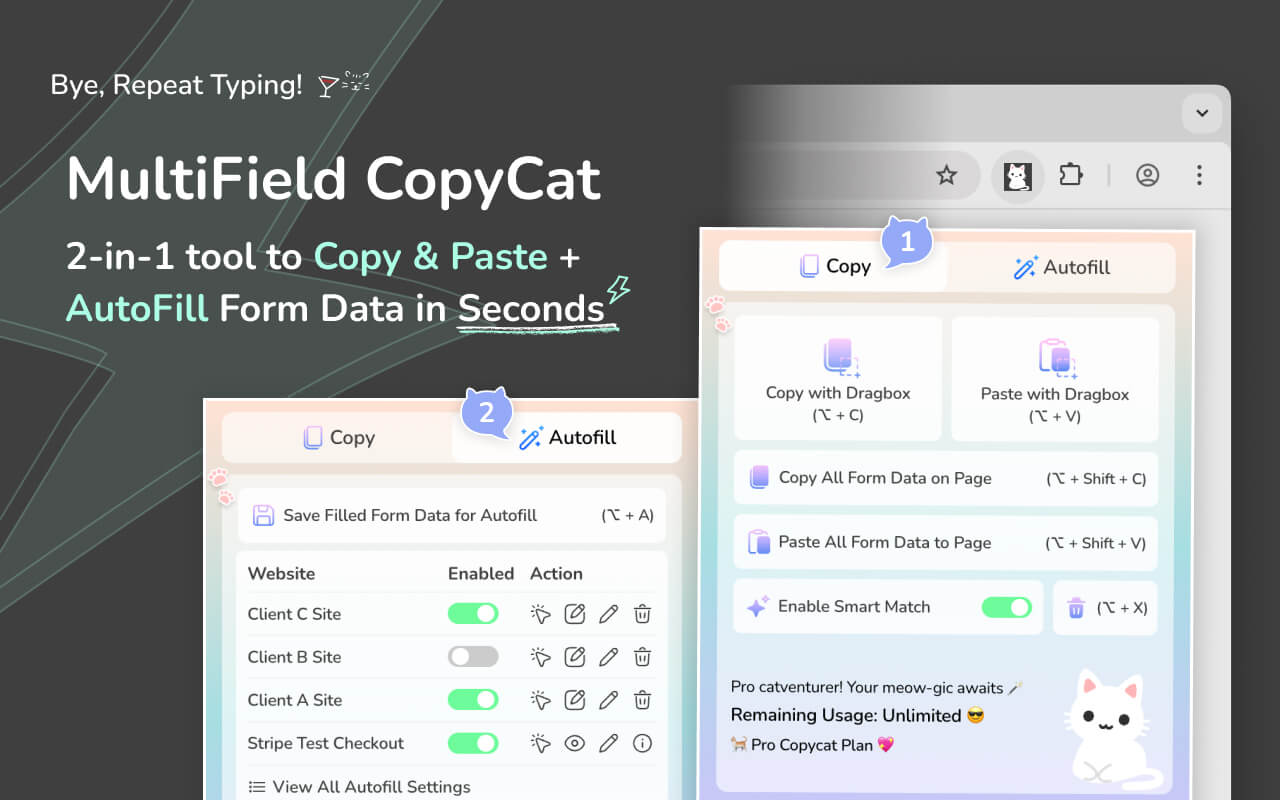
That's exactly what MultiField CopyCat's autofill feature lets you do.
🐱 Install & Pin MultiField CopyCat
- Click this MultiField CopyCat Chrome Web Store Link
- Click 'Add to Chrome' to install
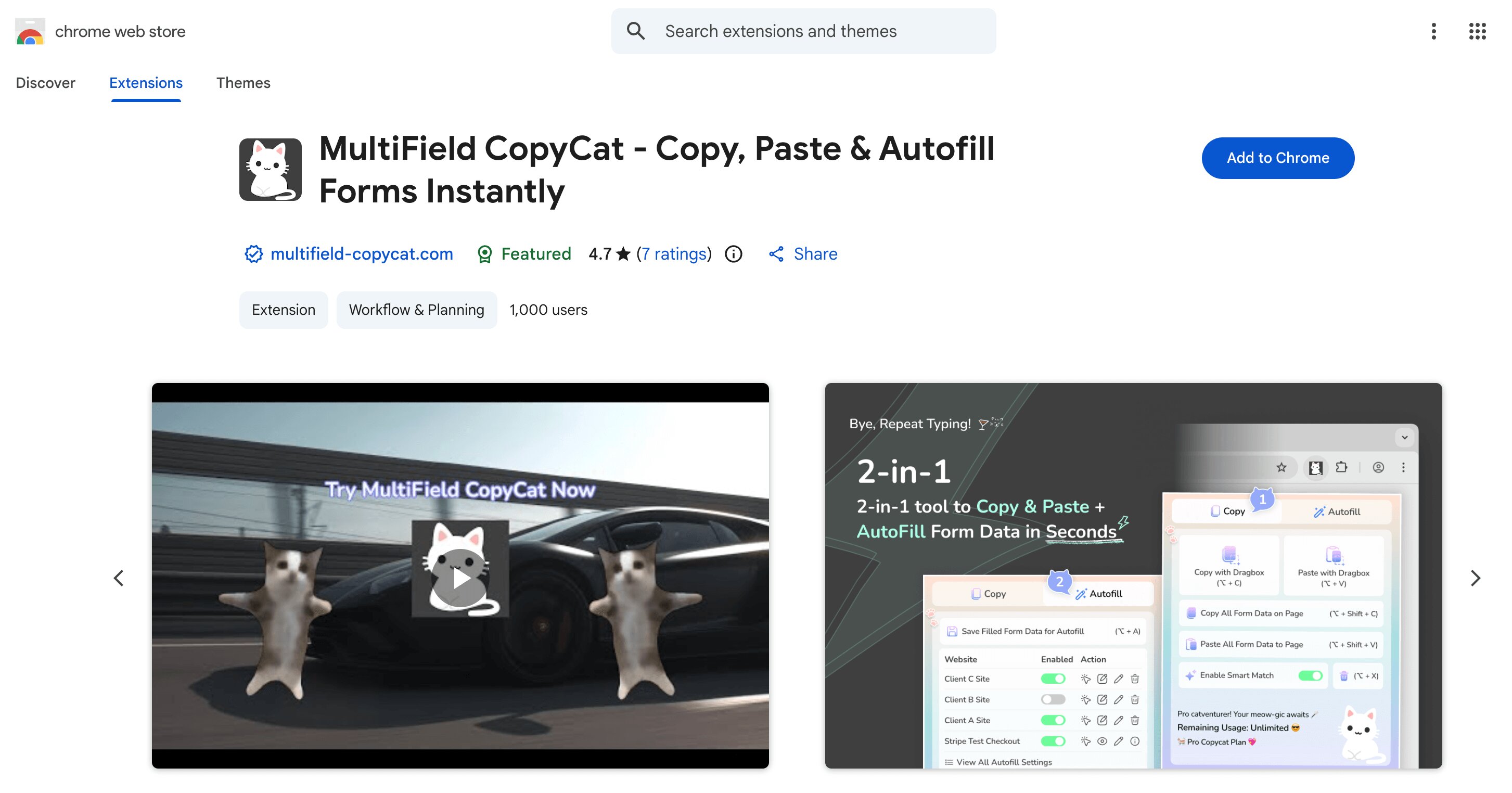
- Pin MultiField CopyCat to your browser toolbar for easy access
🖊️ Fill in Your Form as usual
Fill out the form normally — all your fields, dropdowns, text answers, everything.
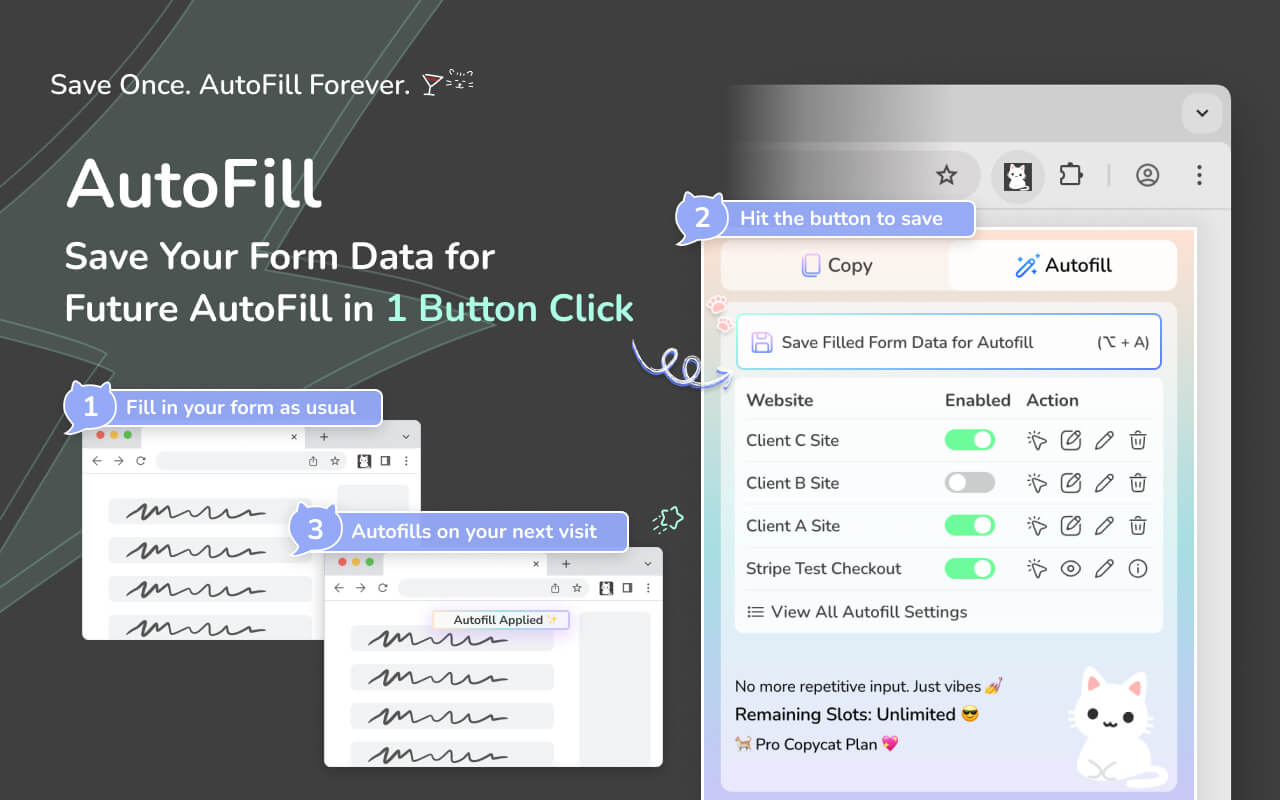
💾 Save Your Form Answers with One Button Click
- Click the extension icon in your toolbar to open the extension popup
- Click the 'Autofill' tab
- Click 'Save Filled Form Data for Autofill', or use the shortcut listed on the button
Your answers are now saved locally in the extension — tied to that page's URL.
🪄 Restore Everything Instantly on Page Load
If the page crashes, times out, or you accidentally close the tab — just reopen the form.
MultiField CopyCat autofills all your saved answers back instantly on page load, or you can trigger the autofill maunally as needed.
No retyping. No starting over.
After you finish the form submission, you can delete the autofill snapshot by clicking the bin button under the Autofill tab.
In short, you can treat this autofill feature as the 'Save As Draft' function. So you can always save the web form entries, and continue working later as needed. Less stress on filling the form in one-go or losing the form progress.
🏁 Final Thoughts
Web forms don't provide you with a save button by default — but that doesn't mean you have to risk losing your work every time you fill one out.
Saving a snapshot of your answers before submitting takes seconds, and it can save you from a lot of frustration.
By leveraging MultiField Copycat's autofill feature, you can save work-in-progress web form entries in one click, and save yourself from losing form progress and starting over again.
👉🏻 Install MultiField CopyCat Now