
Chrome Autofill Not Working? Here’s What Works Better
Published on January 20, 2026 - 4 min read

Chrome Autofill not working on modern web forms? Learn why it fails and discover more reliable autofill workflows for repetitive and complex forms.
😤 The Frustration: When Chrome Autofill Just Doesn’t Work
Chrome Autofill is supposed to make filling web forms easy.
But if you’re here, you’ve probably experienced one (or more) of these:
- Autofill doesn’t trigger at all
- Only some fields get filled
- Wrong data ends up in the wrong fields
- Autofill works on one site but not another
When you’re dealing with long or repetitive web forms, this quickly becomes frustrating — especially when you know the data already exists.
So why does Chrome Autofill fail so often?
🔍 Why Chrome Autofill Fails on Modern Web Forms
Chrome’s built-in autofill feature was designed for simple, static fields like name, email, and address. Modern web apps often use dynamic frameworks, custom components, non-standard field names or coding conventions — and that’s where browser autofill usually gives up.
It struggles because:
- The input is loaded dynamically or after page load
- Field labels or names are unconventional
- The structure doesn’t match known autofill patterns or doesn't follow standard coding conventions
- You need to fill non-personal or repetitive data that Chrome doesn’t track
In short, the default browser solution isn’t built for today’s complex & repetitive form workflows.
🤔 “Fixes” That Rarely Help
You might’ve tried:
- refreshing the page
- clearing browser cache
- disabling other extensions
- manually triggering autofill
Sometimes these help — but often they don’t. Browser Autofill simply isn’t built to handle every form situation you’ll encounter.
⚡ But there is Something that Works Better Than Browser Autofill
Instead of relying on the browser to guess how your data should be filled, a better approach is to use workflows that let you define the form behavior.
This means using tools that:
- remember exact field sets
- let you save filled forms
- autofill forms instantly on page load
- support repeated use over time
That’s why using a dedicated browser extension like MultiField CopyCat is often a better approach — it gives you full control over how forms are copied, pasted, and autofilled across any website. Works even on forms where traditional browser autofill fails.
🧩 MultiField CopyCat’s Autofill Feature
MultiField CopyCat doesn’t just copy and paste — it also includes a real autofill feature that works reliably where Chrome’s built-in autofill fails.
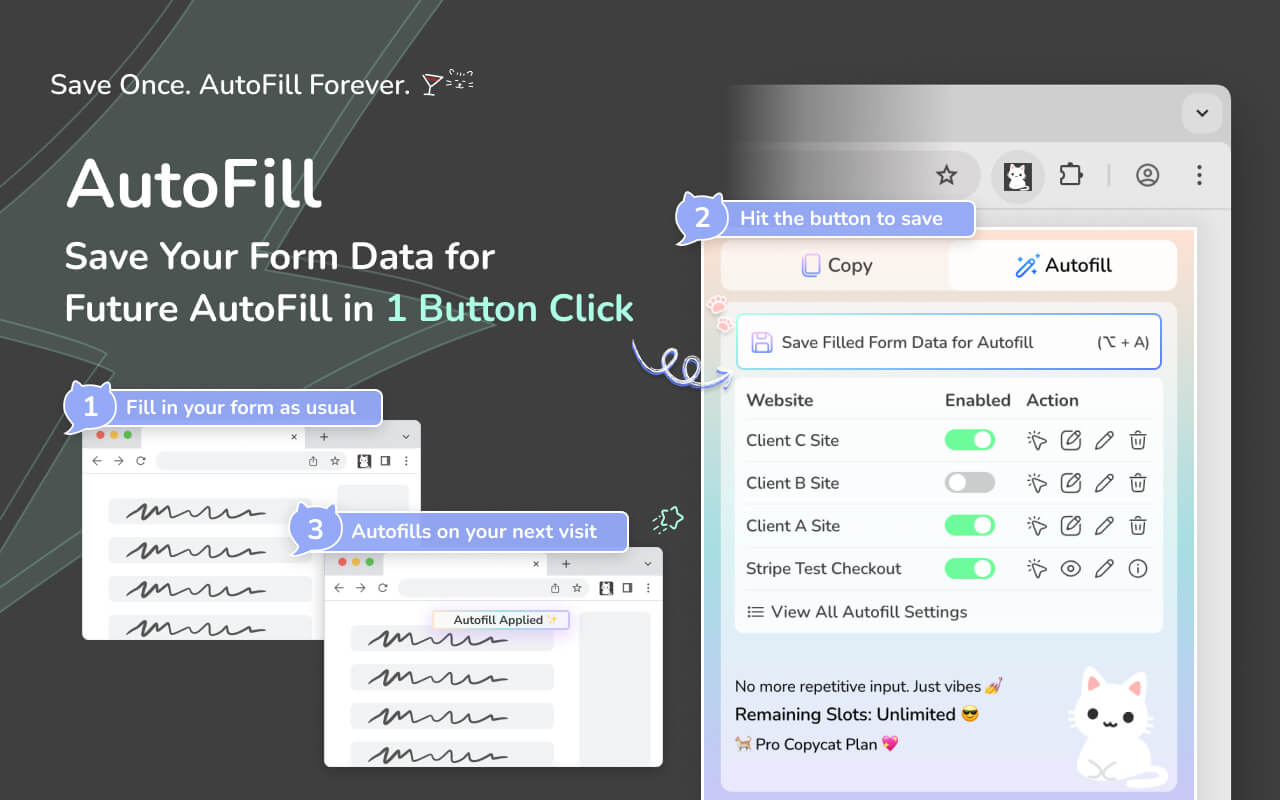
Here’s what it can do:
-
✅ Save & Reuse Form Sets
- Once you fill a form manually, you can save that entire form’s data as an autofill preset — and reuse it instantly on your next visit on the same site.
-
✅ Autofill Automatically on Page Load
- Forms fill instantly when the page loads using your saved settings — no clicking field by field.
-
✅ Trigger Instant Form Filling on Current Page with Saved Autofill Setting
- Use the 'Apply Autofill' button (Arrow icon) in the extension popup to fill forms on current page with your selected saved form setting.
-
✅ Keyboard Shortcuts & UI Controls
- Save autofill form setting actions can be triggered by shortcuts or the popup button, and you can easily enable/disable autofill per setting.
-
✅ Works With Stripe Test URLs
- The autofill feature even supports Stripe checkout test pages out of the box under Stripe test-mode URLs for developers and testers
-
✅ Multiple Saved Autofill Sets (Pro)
- With Pro, you can switch between different saved form sets effortlessly — perfect for testing, QA, or different workflows across different environments.
-
✅ Customizable Autofill Timing (Pro)
- Some forms take time to load dynamic fields. Custom autofill delay ensures values apply at the right moment — especially on slow or complex pages.
All of this helps you fill forms more intelligently and reliably than relying on the browser alone.
(Video: Save Form for Instant Autofill)
🧠 Real Workflow vs Browser Guesswork
Instead of:
- relying on browser traditional logic
- praying Chrome recognizes your fields
…you get:
- precise control over what gets filled
- saved presets for repeated tasks
- speed and accuracy across sessions
This means less frustration and more productivity.
👥 Who This Matters Most For
Chrome Autofill issues show up most often for:
- Operations or admin teams using internal dashboards
- Developers & QA testers validating forms
- Recruiters entering similar data across portals
- Digital marketing teams submitting campaign, lead generation, and outreach forms
- Finance teams entering expense, invoice, and procurement data
- Anyone who fills forms many times per week
If autofill keeps slowing you down — even on sites where you know your browser should fill — a tool with built-in autofill tailored for repetitive workflows is often the real solution.
🏁 Final Thoughts
Browser Autofill isn’t “broken” — it’s just not built for today’s modern workflows. When forms are dynamic, customized, or repetitive, relying on guesswork from a browser feature stops working.
A workflow that lets you define what autofill means often works better — and gives you predictable, fast results.
Give MultiField CopyCat a try and see if that might just be the right form-filling extension for you.


